
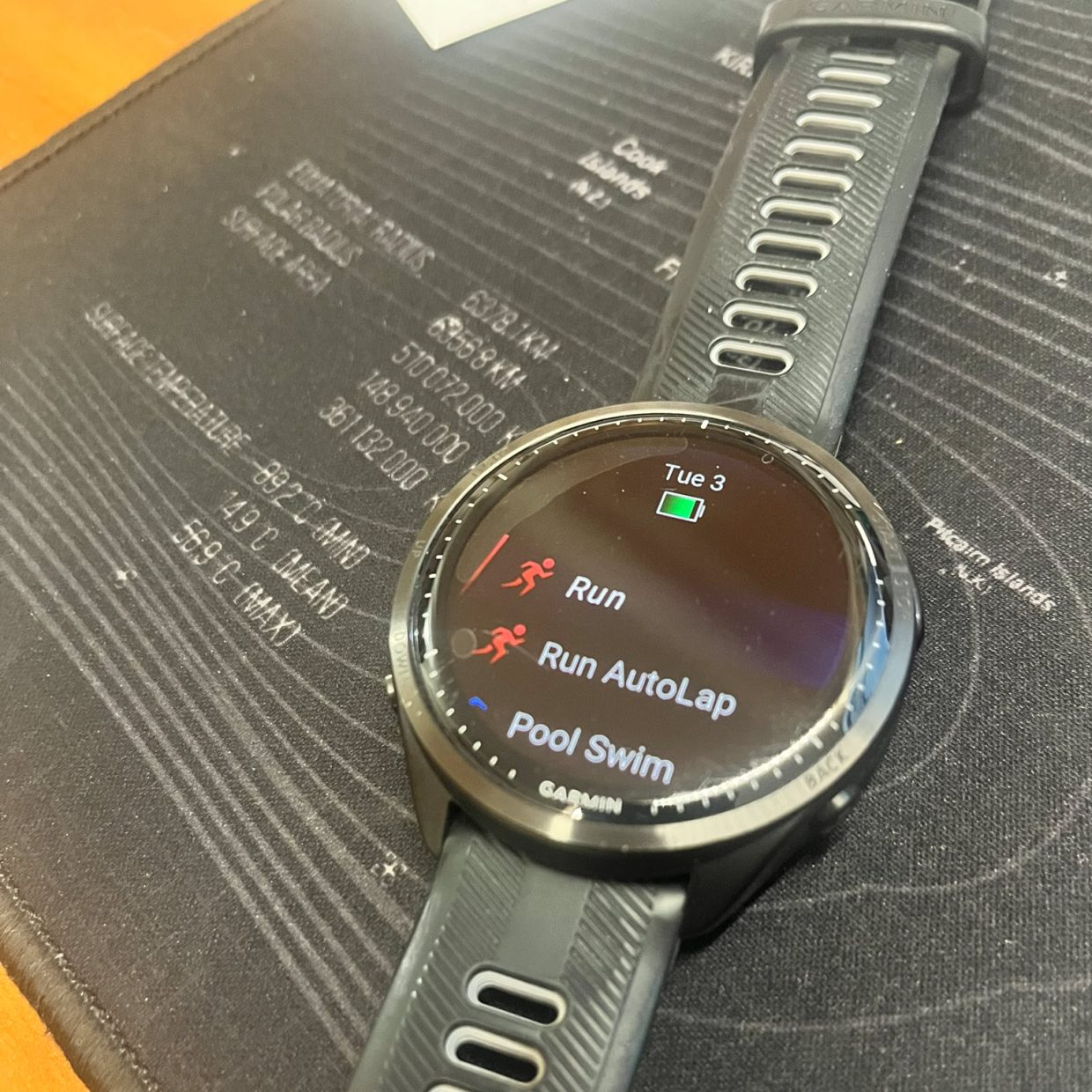
By default Gramin watches set Run Activity profiles to AutoLap every mile or kilometre. This is great for steady runs as it gives us coaches great insights into how the run was executed.
However, for sessions where you are doing structured intervals like 6 times 4 minutes with 90 seconds recovery, you might press LAP at the start of the first interval, but then Autolap will set it’s own additional lap when you hit the next mile or Km marker. This can leave you confused as to how long you have left to run on an interval or even how much recovery you have left. For the coach it also makes interpreting the data difficult as laps will not equate to the intervals. So you can’t see average pace & heart rate, distance etc.
Solution.
For simplicity I just add a second Run profile so I have Run Auto & Run. This means I dont need to remember to turn Auto Lap On or Off each run.
How?
First, copy existing profile and create an Auto Lap profile and then turn off the auto lap feature in the original profile.
This is easiest done in the Garmin Connect app on your Smartphone.
Tap …Home > Devices > Select your watch
Select Activities & Apps > select Run
Select the elipses ( the three vertically stacked dots top right)
Select > Copy Activity > select the name and rename as suits you – e.g Run Auto Lap > Save
By default the new activity does not appear in your list so you have to add it. Back out back to the device menu and select Activities and Apps, scroll down and Add – your Run Auto should appear at the bottom of the list, select it and it will be added into your Activity stack. Adjust its position in te list if you wish by selecting Edit top at top right and then drag the activity to where you want it.
Second, turn off autolap
Select Activities & Apps > select Run
Select Laps > Turn off Auto Lap
You’re done!
Tailoring data screens and fields
The second benefit is that I set my default screen to contain the metrics I want :
Run Autolap: Timer, Distance, Current Heart Rate, Current Pace
Run (for Intervals) : Lap time, Heart Rate, Current Pace, Distance (Distance is useful but not important)
On secondary screens I put additional data that I may need, but not as a primary view requirement.
Finally : Workouts. If you use a structured workout that has been set up in your watch then it overrides autolap and creates laps from pre-determined intervals.
How ?
Back in Garmin Connect app on your Smartphone.
Tap …Home > Devices > Select your watch
Select Activities & Apps > select Run
Select Laps and the existing layouts are listed, select the first layout and then select the layout and fields as your prefer.
You can also do the same for bike profiles.